
Chapter 10 · 10.1
Viewing and downloading your invoices
Watch it in a short video
All your invoices are in My WebOké under My Invoices in the menu on the left. There you'll find every invoice we've ever created for you, whether paid or still outstanding. You can view an invoice, download it as a pdf or have it sent to an email address, for example to your accountant.

The summary
- At the top you'll find the tabs (1): Summary (all invoices), Outstanding, Paid, Credit balance, Direct debit and Transactions.
- Use Show (2) to filter by status: Unpaid, Paid, Cancelled, Refunded, Collection, Pending or Draft. Choose All to see everything again.
- For each invoice you'll see the invoice number (3), the date, the amount, what's already been paid, what's still outstanding and the status. Click the number or the row to open the invoice.
- On the right you'll find the actions: PDF (4) downloads the invoice straight away, and the paper plane icon (5) opens the window to email the invoice. If an invoice is still outstanding, you'll also see the Pay button there.
If you don't yet have direct debit set up, you'll see a bar at the top saying Never think about invoices again. Click Set up (6) to go to direct debit. You can read how that works in Setting up or stopping direct debit.
If you have outstanding invoices, you'll see above the list how many there are and what amount still needs to be paid (1), along with the Pay all button (2). Each outstanding invoice has a Pay button (3). You'll also see how many invoices are outstanding next to My Invoices in the menu on the left. See Paying an invoice (including several at once).

Opening an invoice
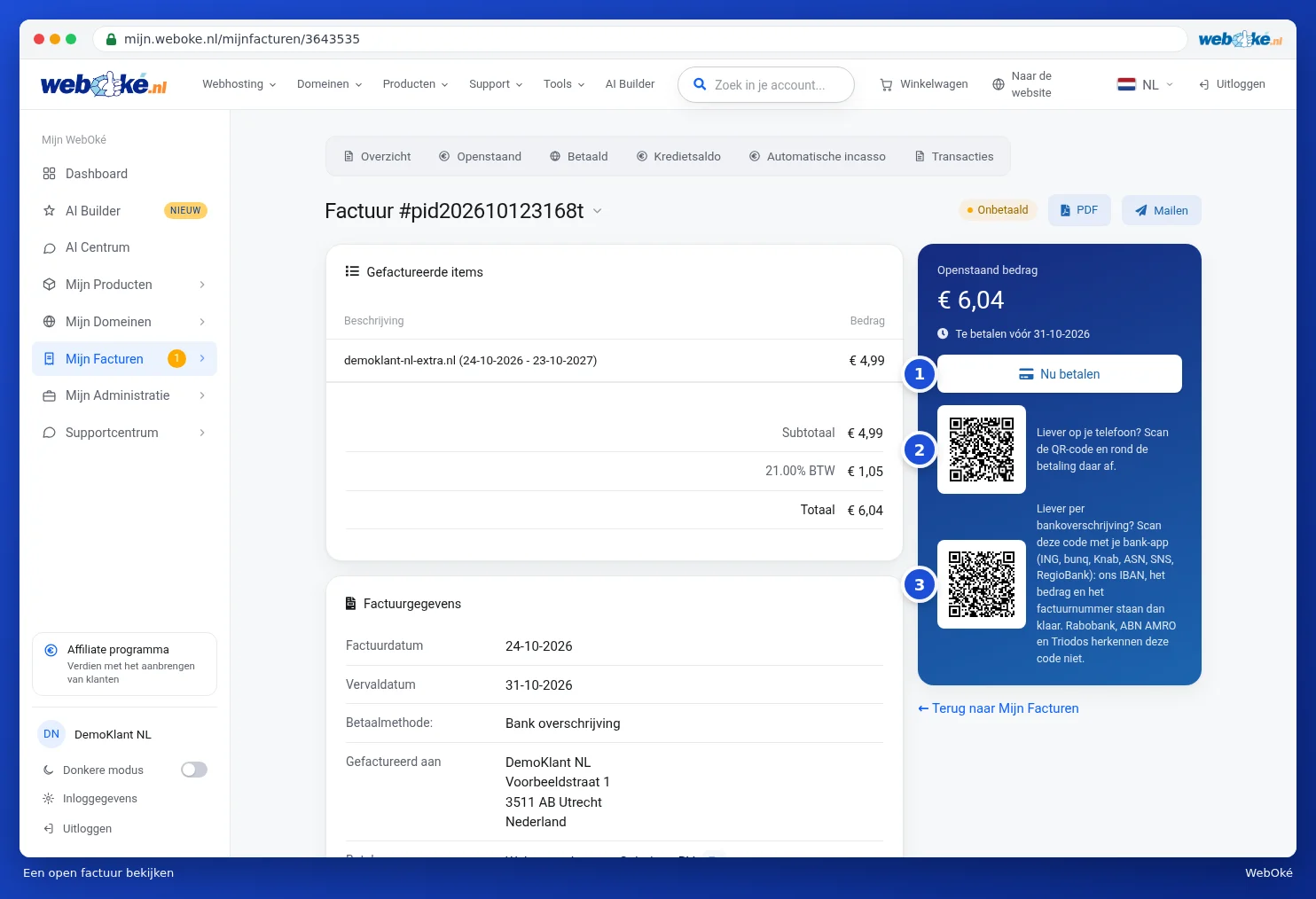
On the invoice page, you'll see the invoiced items with subtotal, VAT and total. Below that are the invoice details: invoice date, due date, payment method, who the invoice is addressed to, and our bank and VAT details. Right at the bottom are the payments linked to this invoice, with the date and payment method.

On the right you'll see whether the invoice has been paid. If it's still outstanding, you'll see the outstanding amount and the payment due date there, along with the Pay now button (1), a QR code to pay on your phone (2) and a QR code for your banking app if you'd rather transfer the money yourself (3). You can read how paying works in Paying an invoice (including several at once).
Downloading as pdf
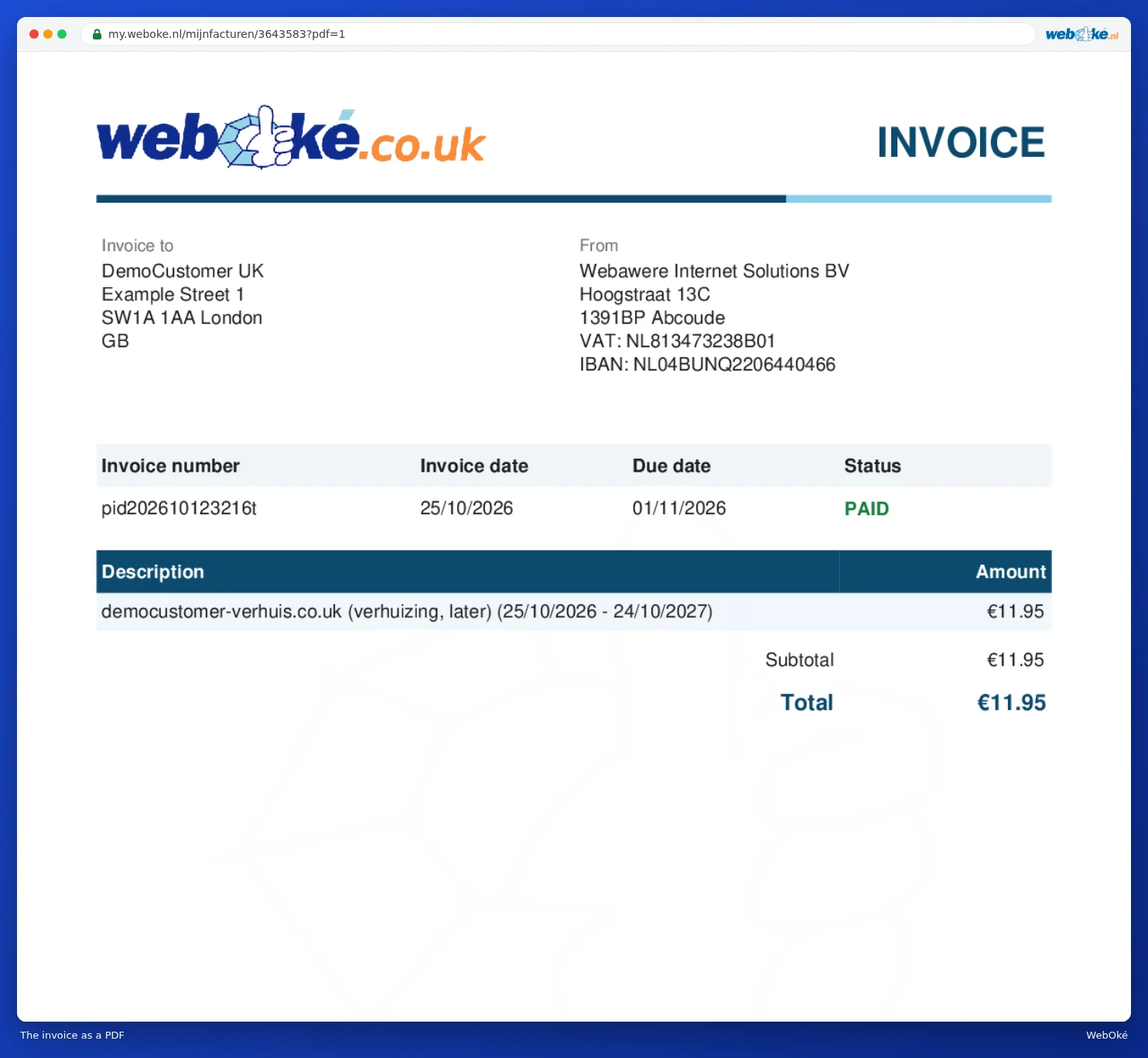
Click PDF (1). The invoice is downloaded as a pdf file. You'll then find it in your Downloads folder. The pdf has the same details as the invoice on screen, with your address, our details, the line items and the status.
Emailing an invoice
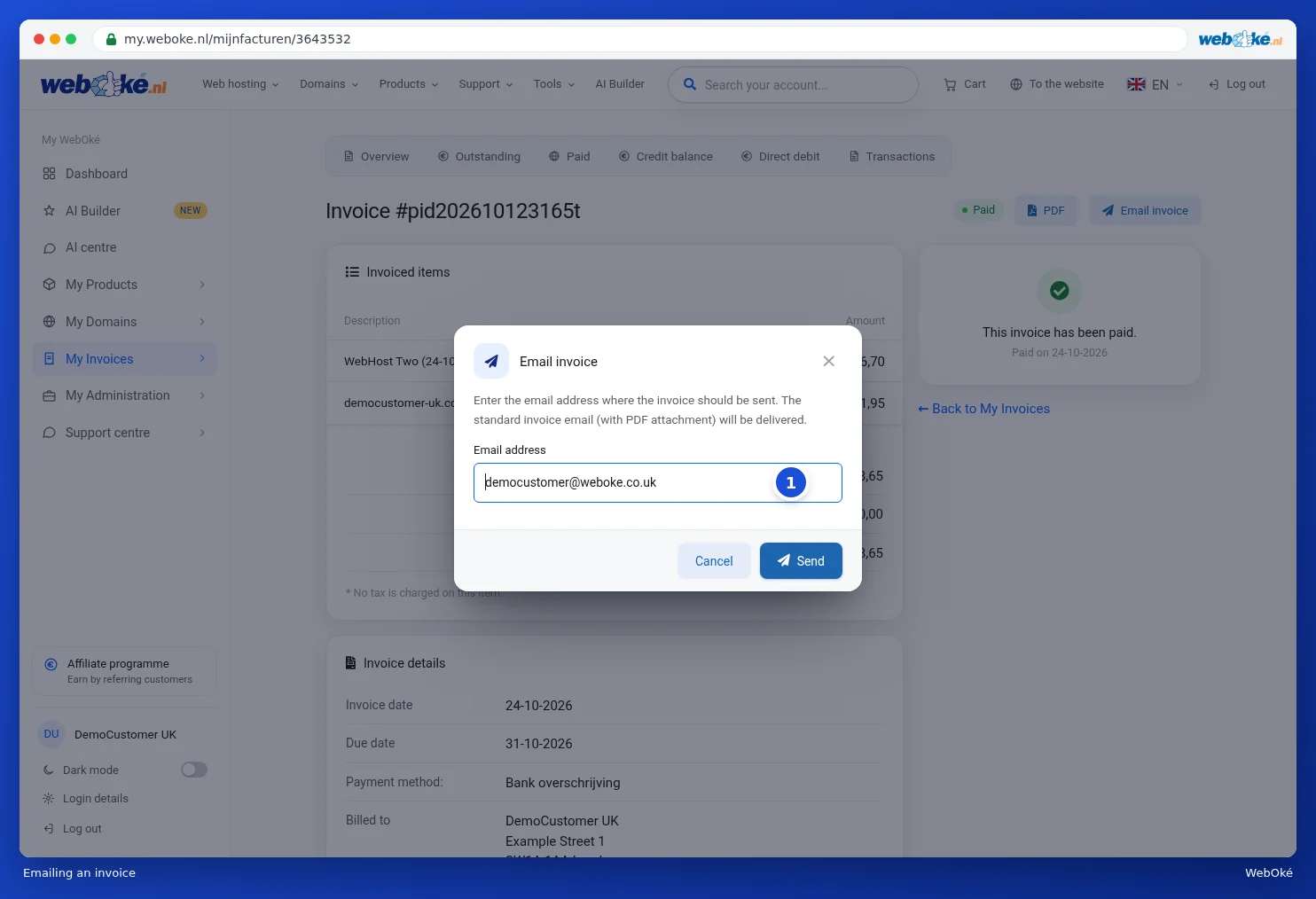
- Click Email invoice (2) on the invoice page, or the paper plane icon in the summary.
- Enter the email address the invoice should be sent to (1). Your own address is already filled in.
- Click Send. The recipient receives the usual invoice email with the pdf attached.
This is what the invoice email looks like. You'll also receive it automatically for every new invoice. At the top are the invoice number, the due date and the amount, followed by the invoice line items. Use Pay the invoice or the QR code to pay straight away. Would you rather transfer the money yourself? Then scan the second QR code with your banking app.

Tip: want to email or download several invoices at once? Tick them in the summary and choose an action in the blue bar. You can read how that works in Paying an invoice (including several at once).
Transactions: everything in one place
On the Transactions tab you'll see everything that's happened with money on your account, by date: invoices, payments, refunds and your credit. At the top are the totals: invoiced, paid, paid with credit or credit note, currently outstanding, and your credit.
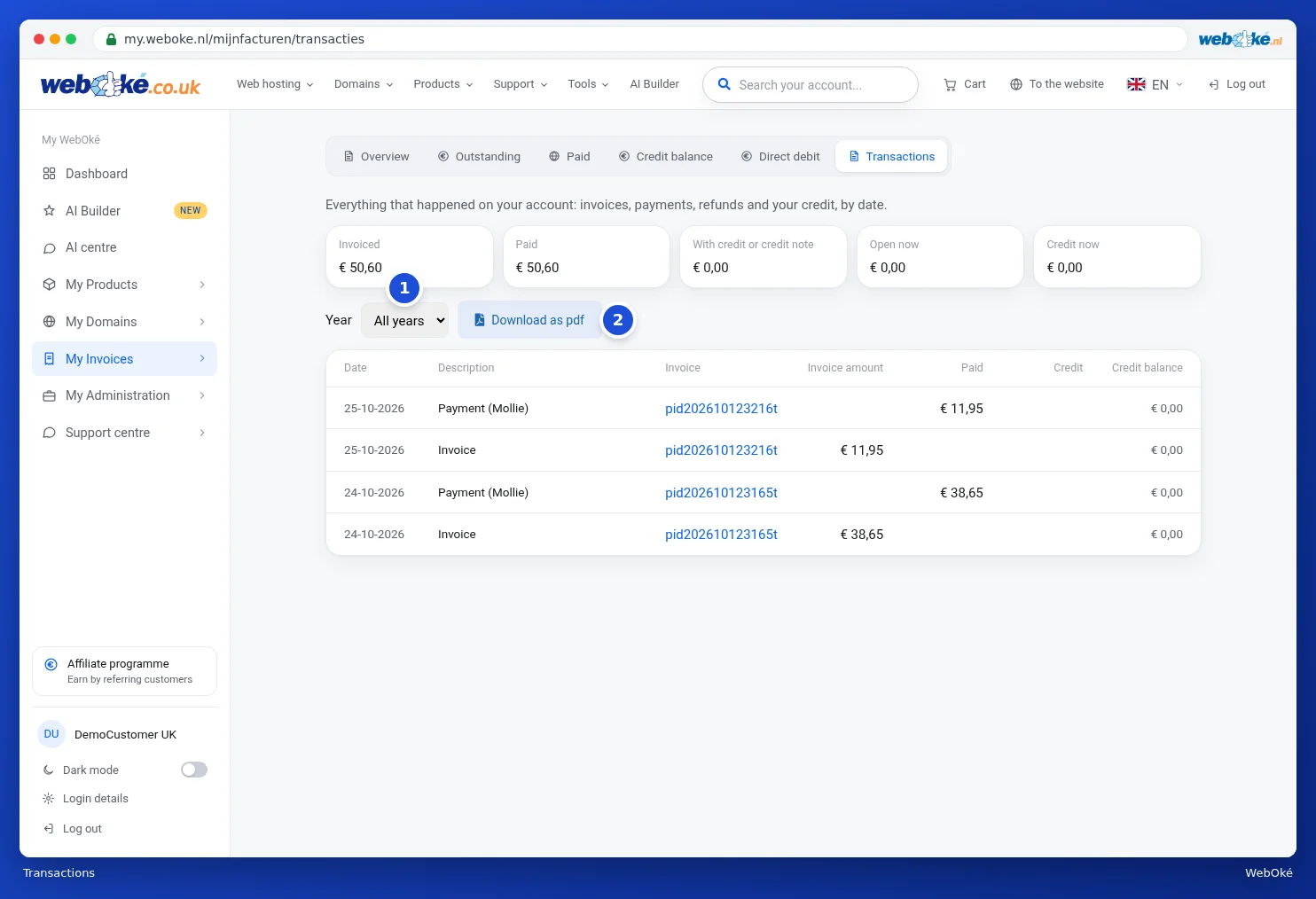
Choose a year under Year (1) to see just that year. Use Download as pdf (2) to get the summary as a pdf, handy for your bookkeeping or tax return.