
Chapter 9 · 9.13
Calendar in Outlook with CalDav Synchronizer
Outlook can't work with a CalDAV calendar on its own. With the free CalDav Synchronizer add-in for Outlook on Windows, it can: it keeps a calendar folder in Outlook in sync with a calendar in your WebOké Nextcloud, in both directions. It can also synchronise contacts and tasks.
Let op: this only works in the classic Outlook programme for Windows (part of Microsoft Office or Microsoft 365). The new Outlook for Windows, Outlook on the web and Outlook for Mac don't support this add-in. There, you can only view your calendar via a subscription link, see Outlook and Nextcloud calendar side by side.
Let op: your normal password won't work here. Your WebOké Nextcloud asks for an extra code when you log in, and a calendar or contacts app can't fill that in. So use an app password: a separate password for one device or program. You'll find out how to create one in App passwords: when and how to use them; here's the short version.
Step 1: create an app password
- Log in to your WebOké Nextcloud on your computer, click your profile picture in the top right and choose Settings.
- Click Security on the left and scroll down to Devices & sessions.
- Enter a recognisable name in App name (1), for example Outlook, and click Create new app password (2). Your Nextcloud may ask for your normal password again.
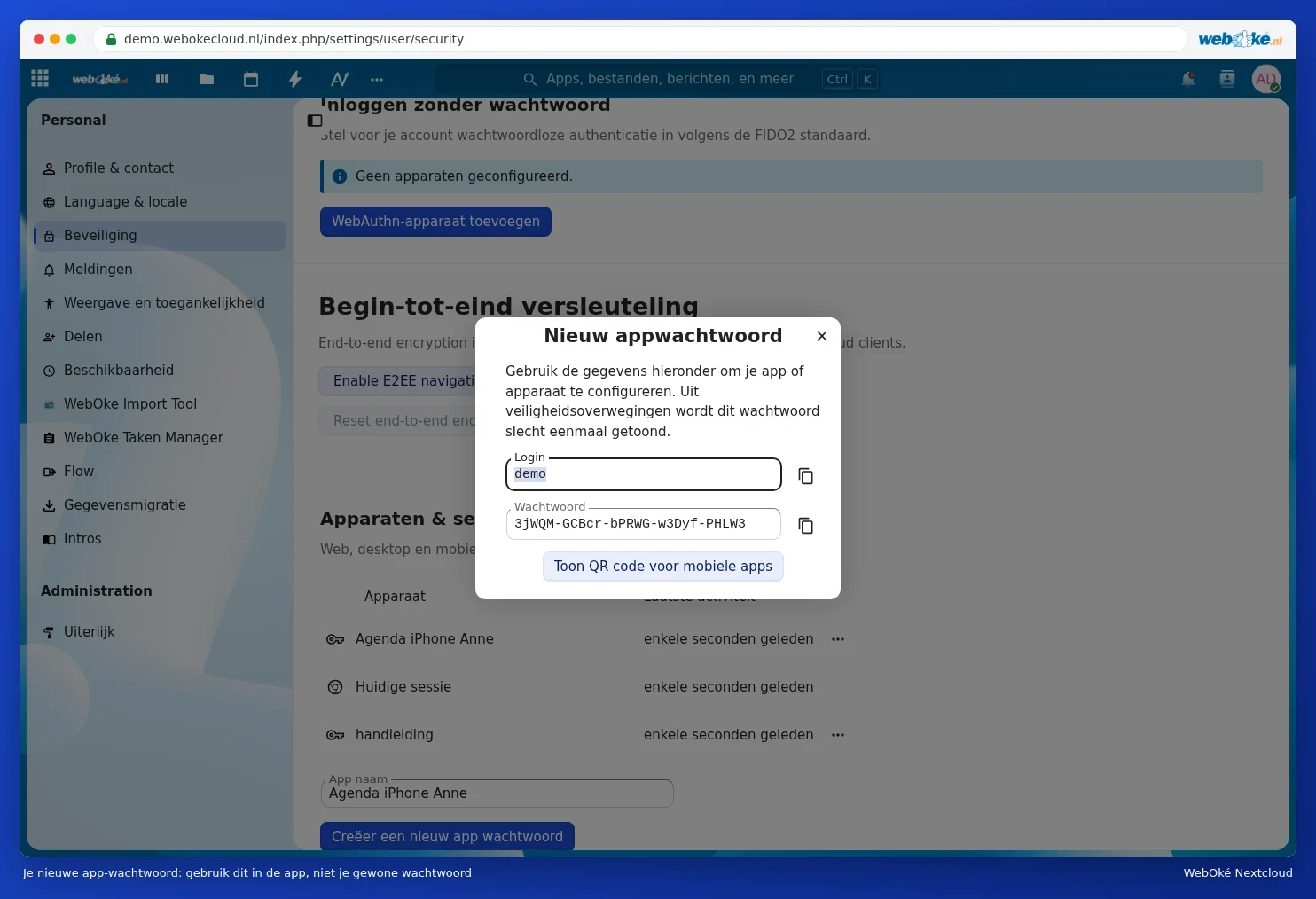
- You'll now see your Login (your username) and a long Password. Leave this window open, you'll need it in a moment. The password is only shown once.

Step 2: install CalDav Synchronizer
- Download the add-in from the official website caldavsynchronizer.org.
- Close Outlook and start the installer.
- Open Outlook. You'll now see a CalDav Synchronizer tab at the top. The add-in is in English.
Step 3: create an empty calendar folder in Outlook
In Outlook, create a new, empty calendar alongside your existing calendars, for example WebOké Nextcloud. Your Nextcloud calendar will go there. Don't use your existing Outlook calendar: this keeps the two separate and means you won't lose anything.
Step 4: the synchronisation profile
- On the CalDav Synchronizer tab, click Synchronization Profiles.
- Click the green plus icon (Add new profile) and choose Nextcloud.
- Give the profile a name and choose the empty calendar from step 3 under Outlook folder.
- Enter the server details from the table below.
- Click Discover resources and assign to Outlook folders (or Test or discover settings) and choose which Nextcloud calendar belongs to the Outlook folder.
- Click OK. The first synchronisation starts.
| Field in CalDav Synchronizer | What do you enter? |
|---|---|
| DAV URL | https://<your-address>/remote.php/dav/ |
| Username | Your username |
| Password | The app password |
| Email address | Your email address (as in your Nextcloud profile) |
In this article, replace <your-address> with the address you use to open your Nextcloud in the browser (without https://), for example yourname.webokecloud.nl or cloud.yourcompany.com. Replace <username> with your username.
Contacts and tasks
For your contacts and tasks, create an additional profile the same way, with an empty folder for contacts or tasks in Outlook. When discovering resources, choose your address book or task list instead.
Good to know
- The add-in synchronises every few minutes by default. You can set the interval in the profile.
- If there's an error, you'll see a notification in the bottom right. The most common one is 401 Unauthorized: the app password is wrong or has been revoked. Create a new app password and enter it in the profile.
- Invitations you send from Outlook go through your Outlook email account. Also read Appointment invitations that don't arrive and Outlook and Nextcloud calendar side by side.